
How to Troubleshoot Faded Prints and Toner Cartridge Issues?
Few things are more frustrating than printing an important document only to discover faded text, streaky pages, or uneven print quality. Whether you’re working from home or managing office printing, toner cartridge problems can slow productivity and waste both time and money.
The good news is that most faded print problems are easier to diagnose than people think. In many cases, the issue comes down to toner cartridge quality, printer maintenance, or simple settings adjustments.
This guide will walk you through how to troubleshoot faded prints and common toner cartridge issues so you can restore clean, sharp printing without unnecessary expenses.
What Causes Faded Prints?
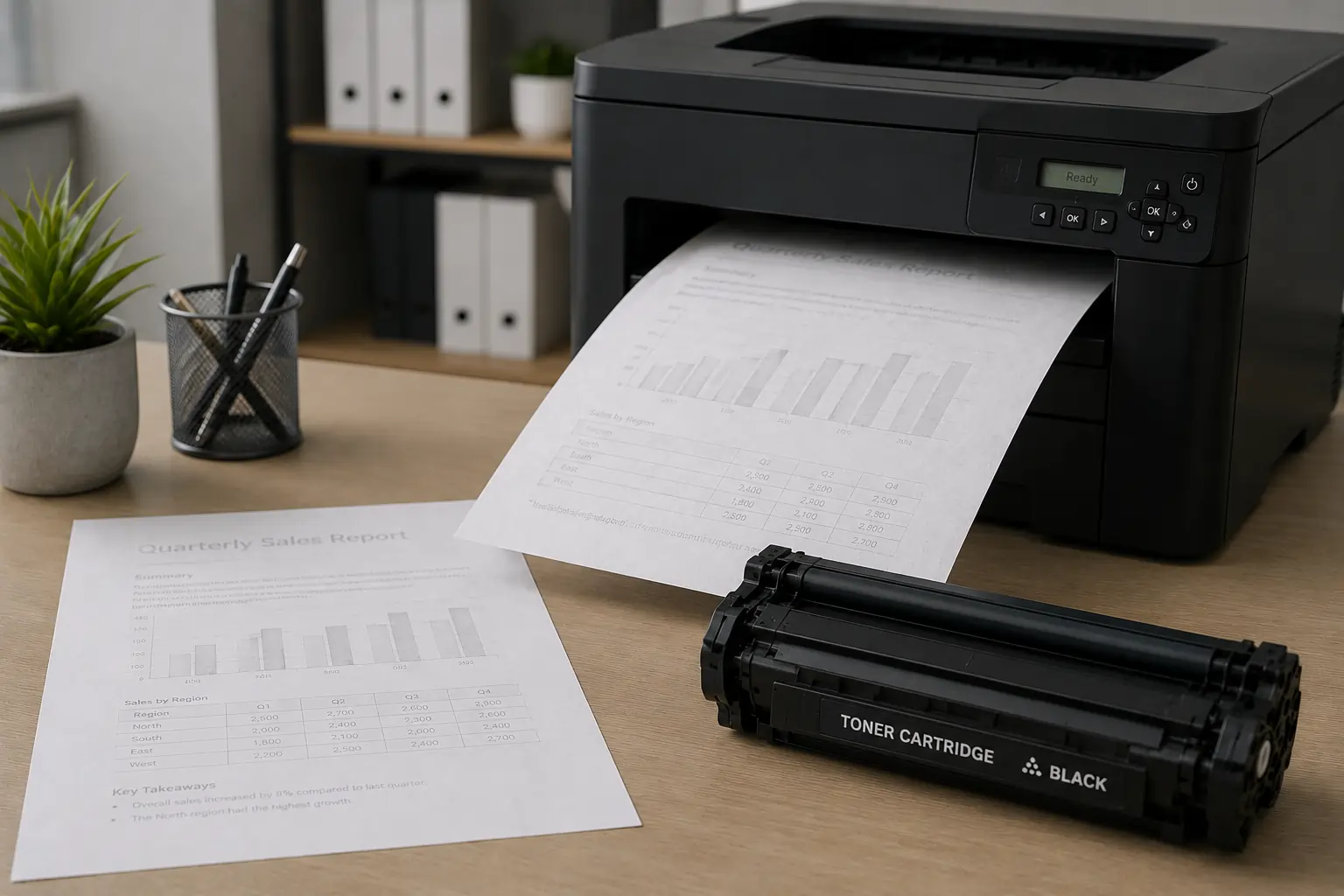
Faded printing can happen for several reasons, and identifying the root cause is the first step toward fixing it.
Common causes include:
- Low toner levels
- Defective toner cartridges
- Dirty printer components
- Incorrect print settings
- Worn printer drums
- Poor-quality compatible cartridges
- Humidity or environmental factors
Some issues are quick fixes, while others may require replacing toner cartridges or printer components.
Check Toner Cartridge Levels First
Before diving into complicated troubleshooting, start with the most common cause: low toner.
Signs Your Toner Is Running Low
Typical symptoms include:
- Light or faded text
- Missing sections on printed pages
- Uneven print density
- Faded graphics or images
Most modern printers allow you to check toner status directly from:
- The printer display panel
- Printer software on your computer
- Manufacturer utility apps
If toner levels are low, replacing the cartridge is often the simplest solution.
Reliable suppliers like Toner Connect offer compatible and replacement toner cartridges for a wide range of printers.
Remove and Reinstall the Toner Cartridge
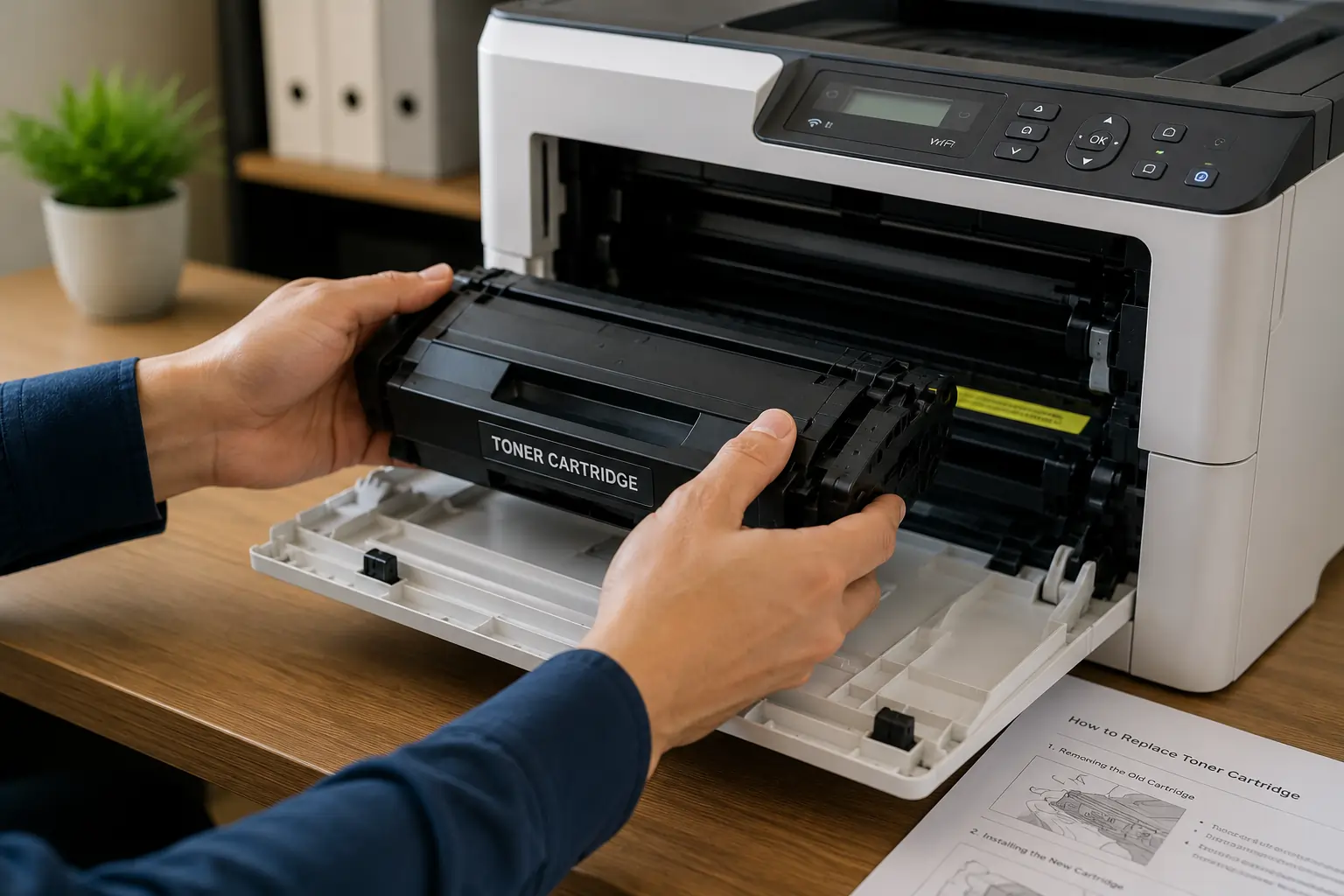
Sometimes toner cartridges simply need to be reseated properly.
How to Reinstall a Toner Cartridge?
- Turn off the printer
- Open the printer access panel
- Carefully remove the toner cartridge
- Gently shake the cartridge side to side
- Reinsert it securely
- Restart the printer
Shaking helps redistribute toner powder inside the cartridge, which may temporarily improve faded printing.
However, this is usually a short-term fix if the cartridge is nearly empty.
Inspect the Toner Cartridge for Damage
Damaged cartridges can create multiple print quality issues.
Common Cartridge Problems
Look for:
- Toner leakage
- Cracks in the cartridge housing
- Damaged rollers
- Broken seals
- Loose components
A defective cartridge may need immediate replacement to prevent damage to the printer itself.
Cheap or poorly manufactured cartridges are more likely to fail early, which is why purchasing from trusted suppliers matters.
Clean the Printer Components
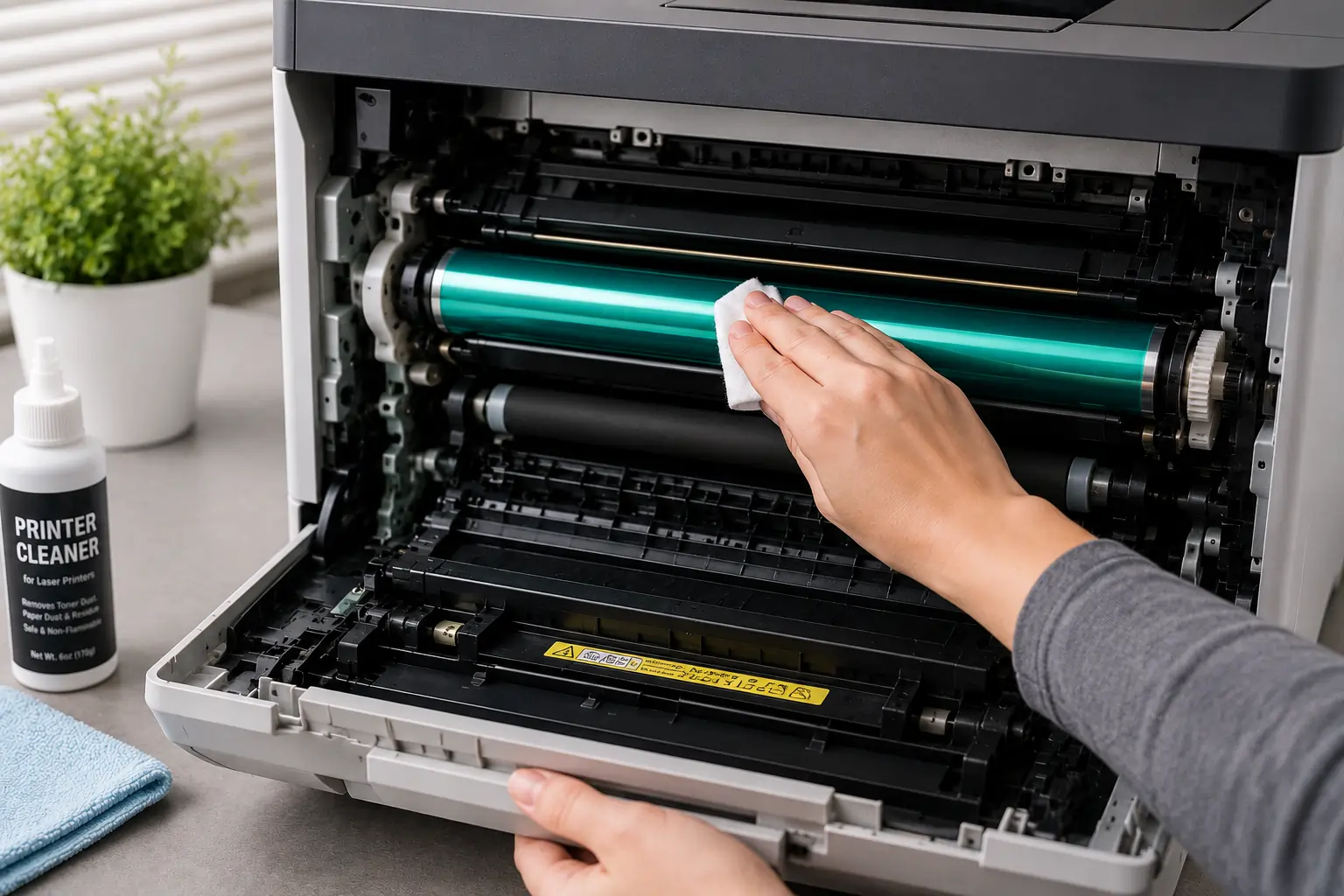
Dust, toner residue, and debris can interfere with print quality over time.
Areas That Often Need Cleaning
Depending on your printer model, clean:
- The drum unit
- Corona wire
- Rollers
- Interior paper path
- Toner contacts
Always follow your printer manufacturer’s cleaning instructions carefully.
According to Brother’s printer support documentation, regular cleaning helps maintain optimal print performance and extends printer lifespan.
Check Print Density and Printer Settings
Sometimes faded prints are caused by software settings rather than hardware problems.
Settings to Review
Check your printer settings for:
- Toner save mode
- Draft mode
- Eco printing mode
- Print density settings
Eco-friendly print settings reduce toner usage, but they can also make documents appear lighter than expected.
Switching to standard or high-quality print mode may instantly improve print darkness.
Replace the Drum Unit if Needed
Many laser printers use separate toner cartridges and drum units.
Signs of a Worn Drum Unit
A failing drum unit may cause:
- Repetitive marks
- Vertical streaks
- Faded sections
- Ghosting effects
If replacing the toner cartridge doesn’t solve the issue, the drum may be the next component to inspect.
Some printers display automatic drum replacement warnings after a certain number of pages.
Use High-Quality Toner Cartridges
One of the biggest causes of recurring print problems is poor-quality toner.
Why Cartridge Quality Matters?
Low-quality toner cartridges may:
- Produce inconsistent print density
- Leak toner powder
- Wear out internal printer components
- Deliver fewer pages than advertised
High-quality compatible cartridges from reliable suppliers can provide excellent print performance at a lower cost than OEM options.
Retailers like Toner Connect specialize in tested toner cartridges designed for compatibility and reliability.
Environmental Factors Can Affect Print Quality
Your workspace environment can also influence toner performance.
Humidity and Temperature Issues
Excess humidity may cause:
- Toner clumping
- Smudging
- Uneven printing
Extremely dry environments can also affect static electricity inside the printer.
For best results:
- Store toner cartridges in a cool, dry place
- Avoid direct sunlight
- Keep cartridges sealed until use
HP’s printer support resources also recommend proper toner storage to maintain print quality.
When to Replace the Toner Cartridge?
Sometimes troubleshooting simply reaches the point where replacement is the best option.
Signs It’s Time for a New Cartridge
Replace the cartridge if:
- Print quality remains poor after cleaning
- Toner leakage is visible
- The cartridge repeatedly triggers printer errors
- Page yield has been fully reached
- Fading continues after reinstalling
Using an old or failing cartridge too long may eventually damage the printer drum or rollers.
How to Prevent Future Toner Cartridge Problems?
Preventive maintenance is often the easiest way to avoid recurring print issues.
Best Practices for Better Printing
- Use quality toner cartridges
- Clean printers regularly
- Avoid overloading paper trays
- Store toner properly
- Print regularly to prevent toner settling
- Buy cartridges from trusted suppliers
Businesses with high print volumes especially benefit from consistent cartridge quality and scheduled printer maintenance.
Why Buying From a Trusted Toner Supplier Matters?
Not all toner cartridges are manufactured to the same standards. Reliable suppliers test compatibility, page yield, and print consistency before selling products.
Choosing a trusted toner retailer can help reduce:
- Printer downtime
- Cartridge defects
- Wasted toner
- Print quality complaints
For businesses and home users alike, dependable suppliers like Toner Connect make it easier to find compatible toner cartridges that balance quality and affordability.
Final Thoughts
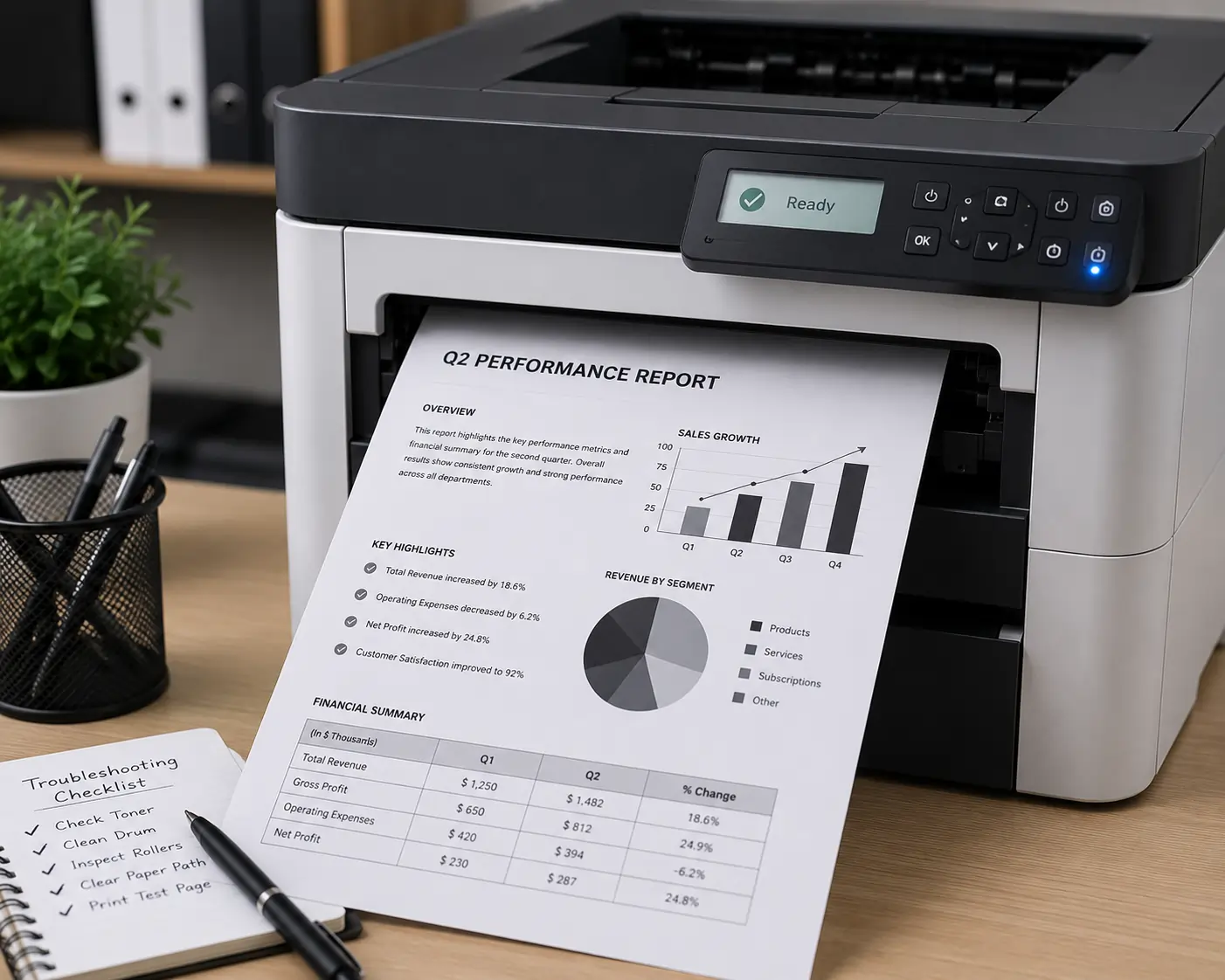
Faded prints and toner cartridge issues can be frustrating, but most problems can be resolved with simple troubleshooting steps. From checking toner levels to cleaning printer components and replacing worn cartridges, small maintenance habits can make a major difference in print quality.
Most importantly, using reliable toner cartridges helps prevent recurring problems while protecting your printer investment over time.
By understanding the most common causes of faded printing, you can keep your printer running smoothly and avoid unnecessary replacement costs.