
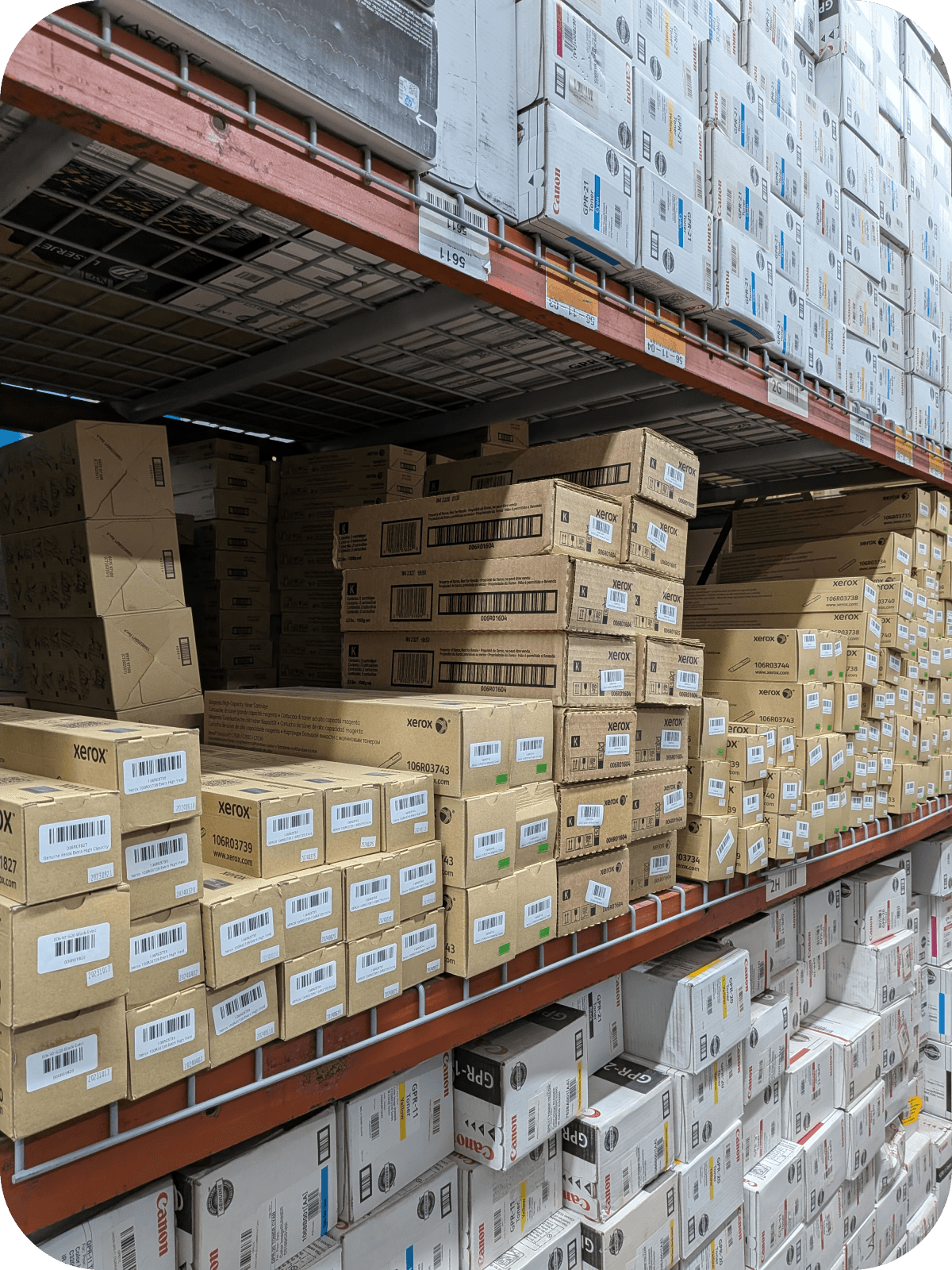
Out of Toner Printer? Here’s What to Do Next
If your out of toner printer message appears, don’t replace the cartridge right away. The warning may indicate low toner, a cartridge detection issue, or a printer setting rather than an empty cartridge. A few simple troubleshooting steps can often restore printing and improve cartridge performance.
What Does an “Out of Toner” Printer Message Mean?
It usually means the printer believes the toner cartridge is empty or unable to supply toner properly.
An out of toner printer message doesn’t always mean you’ve completely run out of toner. Many laser printers estimate toner levels rather than measuring the exact amount remaining. As a result, the warning can appear even when there’s still usable toner inside the cartridge.
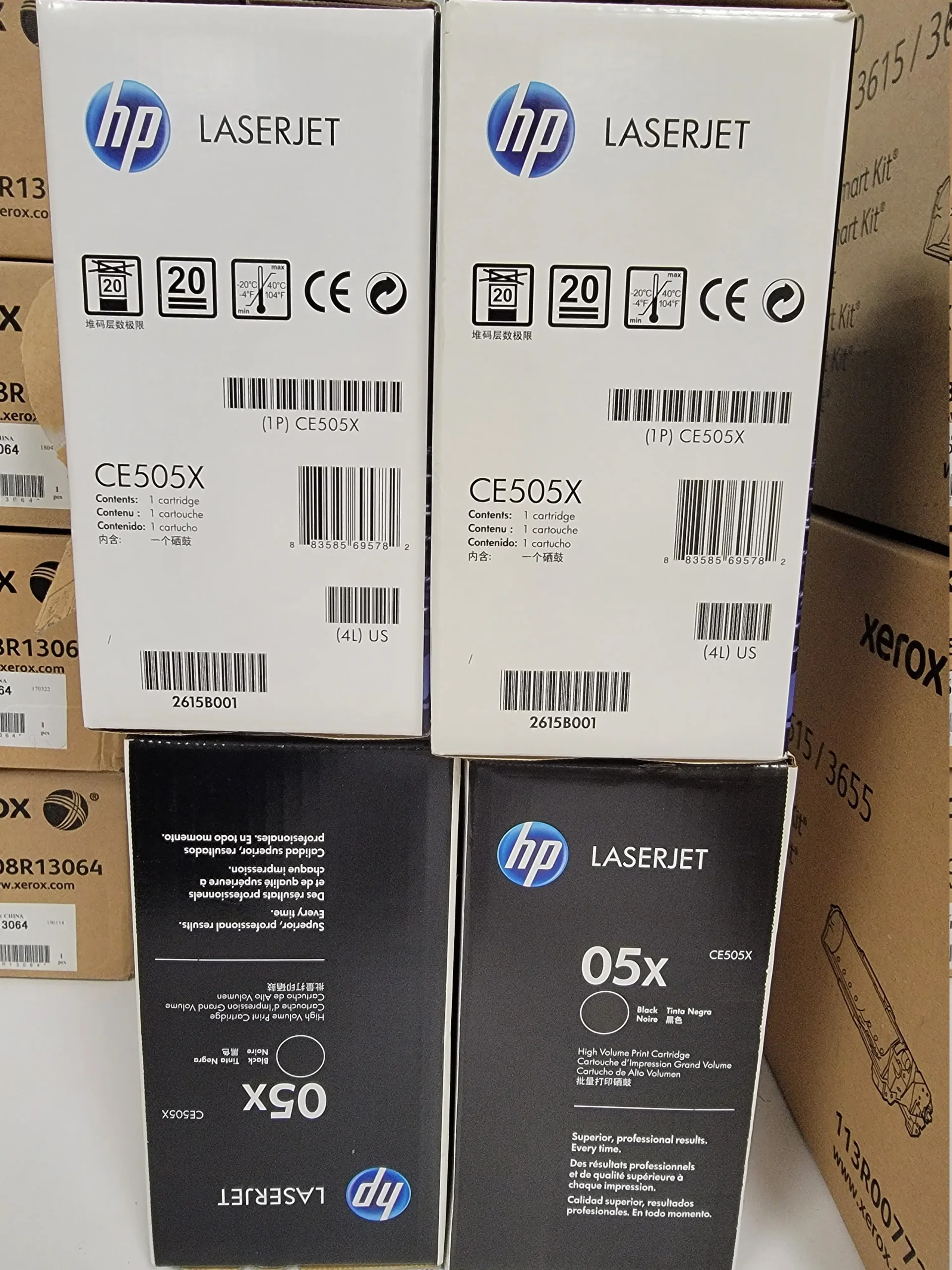
Definition:
An out of toner printer message is a printer notification indicating that toner is low, depleted, or the printer cannot properly detect or use the installed toner cartridge.
Common Reasons Your Printer Says “Out of Toner”
Low toner, installation issues, or cartridge recognition problems are the most common causes.
Possible reasons include:
- The toner cartridge is nearly empty.
- Toner powder has settled inside the cartridge.
- The cartridge isn’t installed correctly.
- The toner chip isn’t recognized.
- The cartridge is incompatible with the printer.
- The printer firmware needs updating.
- The imaging drum requires replacement.
Many of these issues can be fixed without purchasing a new cartridge.
How to Fix an Out of Toner Printer Message?
Start with simple troubleshooting before replacing the cartridge.
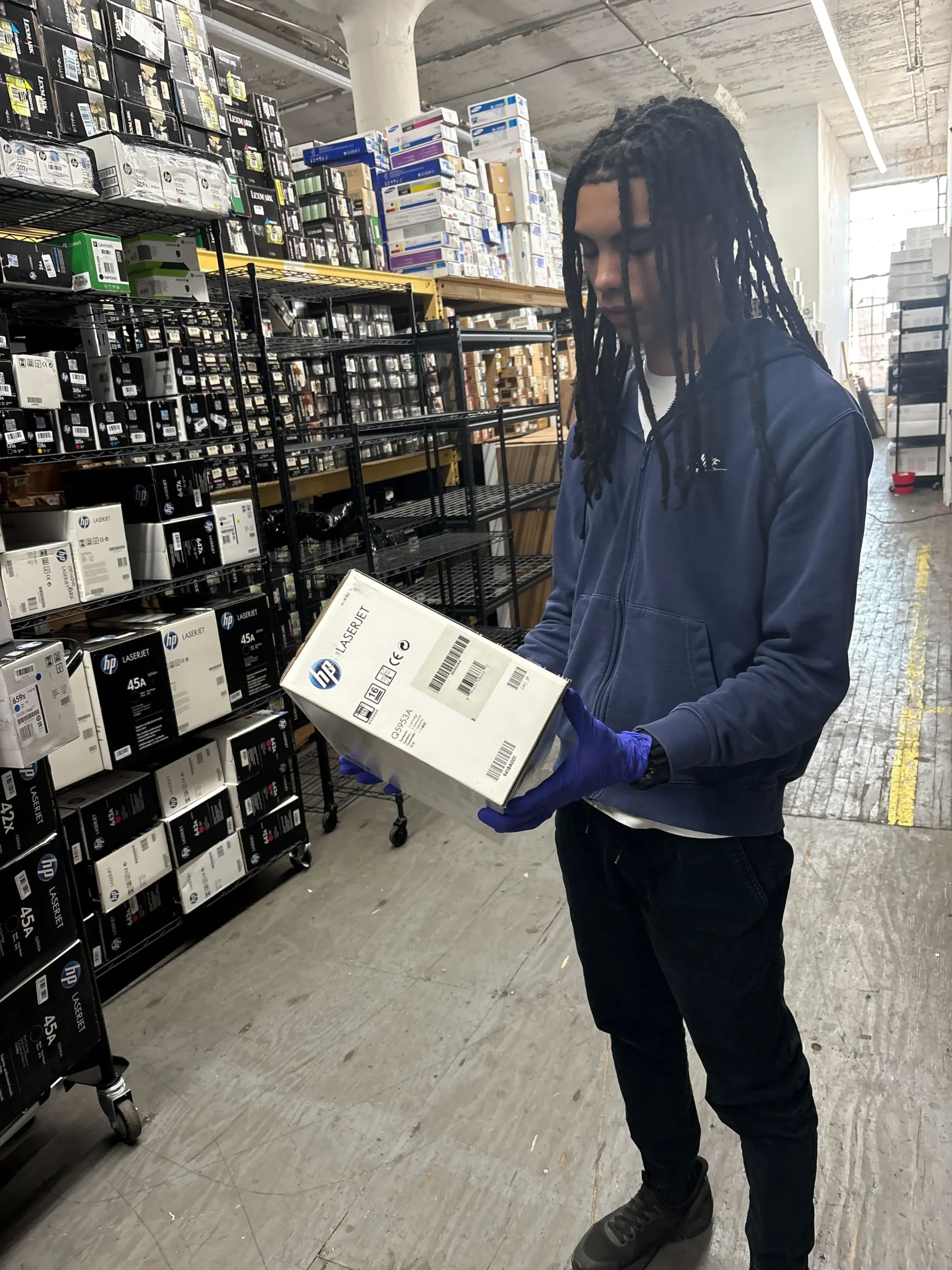
Remove and Reinstall the Toner Cartridge
A loose cartridge can trigger toner detection errors.
Steps:
- Turn off the printer.
- Open the toner compartment.
- Remove the cartridge carefully.
- Reinstall it until it clicks securely.
- Restart the printer.
This often restores proper communication between the cartridge and printer.
Gently Shake the Toner Cartridge
Redistributing the toner can temporarily improve print quality.
Hold the cartridge level and gently rock it from side to side several times.
This helps redistribute toner powder that has settled inside the cartridge and may allow additional pages to print.
Avoid vigorous shaking to prevent toner leaks.
Check Cartridge Compatibility
Make sure the cartridge matches your printer model.
Verify:
- Printer model number
- Toner cartridge model
- OEM or compatible cartridge specifications
Using the wrong cartridge may result in detection errors or poor performance.
Clean the Cartridge Contacts
Dirty electrical contacts may prevent cartridge recognition.
Use a dry, lint-free cloth to gently clean:
- Cartridge contacts
- Printer contacts
Avoid using liquids or abrasive materials.
Restart or Update the Printer
A restart or firmware update can resolve temporary system errors.
Turn the printer off for one minute before restarting.
If the problem continues, check your printer manufacturer’s support page for firmware updates.
When Should You Replace the Toner Cartridge?
Replace the cartridge only after troubleshooting confirms it’s empty or defective.
Replacement is recommended if:
- Print quality remains poor.
- The cartridge is physically damaged.
- Toner has completely run out.
- Another compatible cartridge works correctly.
- Error messages continue after troubleshooting.
Replacing the cartridge too early may waste usable toner.
How to Prevent Future Out of Toner Messages?
Regular maintenance and proper toner storage help reduce printer errors.
Best practices include:
- Store toner in a cool, dry location.
- Use cartridges designed for your printer model.
- Install cartridges carefully.
- Keep printer firmware updated.
- Clean the printer regularly.
- Replace worn imaging drums when recommended.
Preventive maintenance helps ensure consistent print quality.
What Should You Do with Unused OEM Toner?
Unopened OEM toner cartridges may still have resale value.
Businesses often upgrade printers or change models before using all of their toner inventory. Instead of letting unopened OEM toner collect dust, consider selling eligible cartridges through Toner Connect.
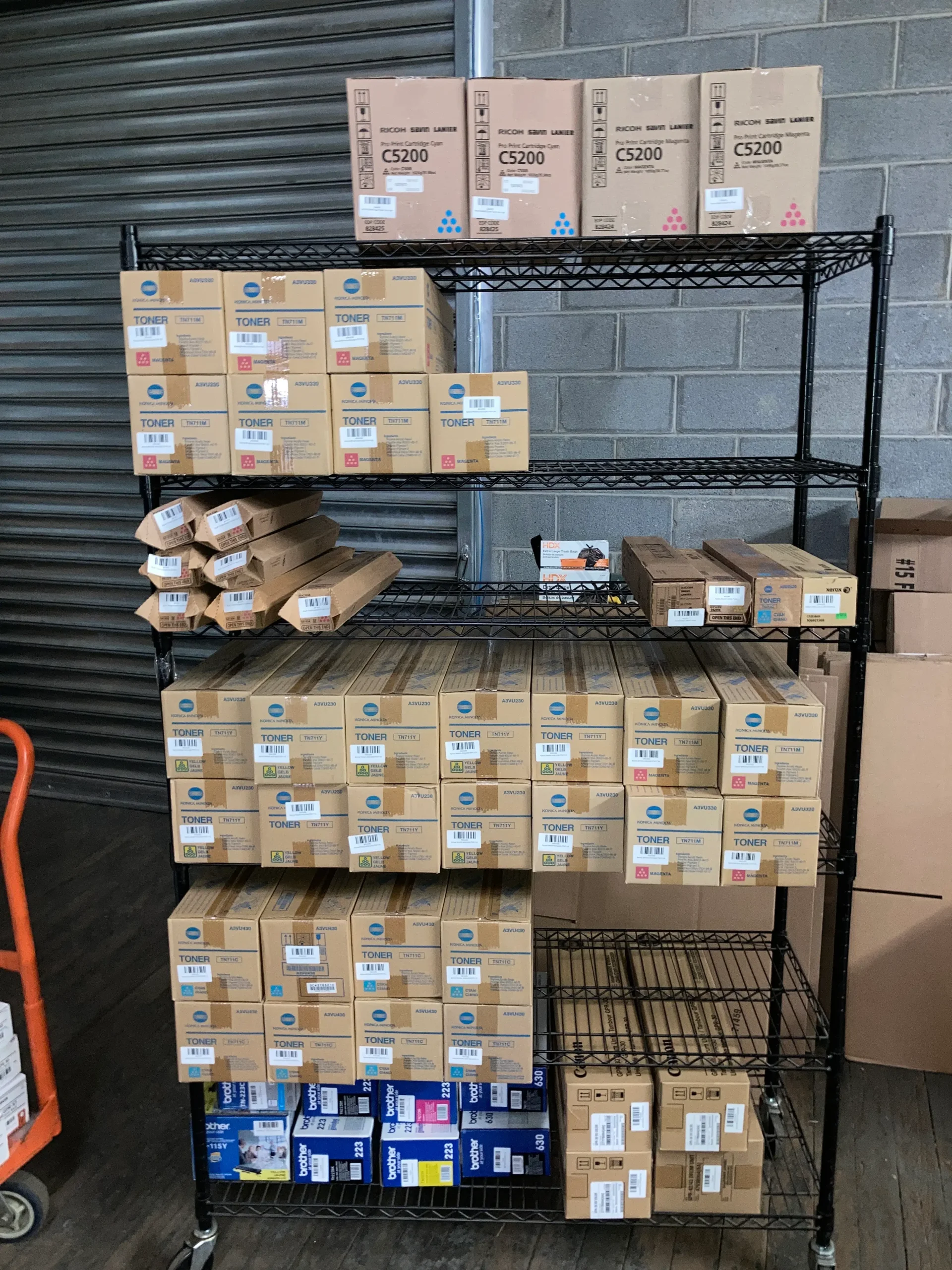
Benefits include:
- Recovering part of your investment
- Reducing office storage
- Supporting sustainability efforts
- Preventing unnecessary waste
Helpful Statistics
Responsible toner management helps reduce waste and extend printer life.
Recent statistics include:
- According to the Global E-waste Monitor 2024, the world generated approximately 62 million metric tons of electronic waste in 2022.
- Only 22.3% of global e-waste was formally collected and recycled in 2022.
- The U.S. Environmental Protection Agency encourages reusing and recycling products whenever possible to reduce landfill waste.
Frequently Asked Questions
Here are answers to common questions about an out of toner printer message.
Can I keep printing after an out of toner warning?
Sometimes.
Many laser printers continue printing for a limited number of pages after displaying a low or out of toner warning.
Why does my printer say out of toner after installing a new cartridge?
The cartridge may not be fully seated, the protective seal may still be attached, or the cartridge may not be compatible with your printer.
Does shaking the toner cartridge really work?
Yes.
Gently redistributing the toner powder can temporarily improve print quality and extend the usable life of the cartridge.
Can unopened OEM toner be sold?
Yes.
If your business has surplus unopened OEM toner, Toner Connect purchases eligible cartridges, allowing you to recover value instead of letting them go unused.
Conclusion
An out of toner printer message doesn’t always mean it’s time for a new cartridge.
Before replacing your toner, try reinstalling the cartridge, gently redistributing the toner, cleaning the contacts, and checking compatibility. These simple steps often resolve common printer warnings and extend the life of your cartridge. If you have unopened OEM toner that you no longer need, Toner Connect offers a convenient way to sell eligible cartridges and recover value.