
How to Reset a Canon Printer Toner Cartridge: Step-by-Step Guide
If your Canon printer toner cartridge still shows a low toner warning after installation, resetting the toner cartridge or toner counter may solve the problem. Depending on your Canon printer model, a reset can clear the warning, improve cartridge recognition, and restore normal printing without replacing the cartridge.
What Is a Canon Printer Toner Cartridge Reset?
A toner reset clears the printer’s toner status so it can recognize the installed cartridge correctly.
A Canon laser printer tracks toner usage using an internal counter or cartridge chip. Sometimes, even after installing a new cartridge, the printer may continue displaying a Low Toner or Replace Toner message. Resetting the toner cartridge allows the printer to refresh its toner status.

Definition:
A Canon printer toner cartridge reset is the process of clearing the printer’s toner counter or resetting the toner status so the printer can properly recognize the installed toner cartridge.
Why Would You Need to Reset a Canon Printer Toner Cartridge?
A reset can fix toner recognition issues and clear inaccurate low-toner messages.
Common reasons include:
- The printer still shows “Low Toner.”
- A new toner cartridge isn’t recognized.
- The toner counter wasn’t reset automatically.
- A compatible toner cartridge triggers an error.
- A temporary printer software issue occurred.
Many of these problems can be solved without replacing the toner cartridge.
How to Reset a Canon Printer Toner Cartridge?
The exact reset process depends on your Canon printer model, but most involve the printer menu or front-panel buttons.

Method 1: Reset Using the Printer Menu
Some Canon laser printers allow toner resets through the settings menu.
General steps:
- Turn on the printer.
- Open the Menu or Settings screen.
- Navigate to Maintenance or Device Settings.
- Locate Reset Toner or Reset Cartridge if available.
- Confirm the reset.
- Restart the printer.
Menu names vary by model, so consult your printer manual if you don’t see these options.
Method 2: Use the Printer Buttons
Certain Canon imageCLASS models support a manual button reset.
Depending on your model:
- Open the front cover.
- Press and hold the Stop, Resume, or OK button.
- Wait until the display changes.
- Select the toner cartridge to reset if prompted.
- Close the cover and restart the printer.
Always follow the instructions for your specific printer model.
Method 3: Remove and Reinstall the Toner Cartridge
Reinstalling the cartridge often resolves toner detection errors.
Steps:
- Turn off the printer.
- Remove the toner cartridge.
- Inspect it for damage.
- Reinstall it securely until it clicks into place.
- Turn the printer back on.
Improper installation is a common cause of toner recognition issues.
Method 4: Check Cartridge Compatibility
Using the correct toner cartridge prevents many reset issues.
Verify:
- Printer model number
- Toner cartridge model
- OEM or compatible cartridge compatibility
Installing the wrong cartridge can prevent successful toner detection.
Method 5: Update Printer Firmware
Firmware updates may resolve cartridge communication problems.
Canon periodically releases firmware updates that improve printer performance and compatibility.
Visit Canon’s support website to download the latest updates for your printer model.
What If the Reset Doesn’t Work?
Check for hardware or cartridge issues before replacing the toner.
If resetting fails:
- Inspect the cartridge contacts.
- Clean any visible toner buildup.
- Test another compatible cartridge.
- Restart the printer.
- Check for damaged printer components.
If another cartridge works properly, your original cartridge may be defective.
How to Prevent Future Toner Cartridge Errors?
Proper installation and regular maintenance help avoid toner reset problems.
Best practices include:
- Use cartridges designed for your printer model.
- Keep firmware updated.
- Store toner in a cool, dry location.
- Handle cartridges carefully.
- Clean the printer regularly.
- Avoid touching cartridge electrical contacts.
Preventive maintenance improves printer reliability.
What Should You Do with Unused OEM Toner?
Unopened OEM toner cartridges may have resale value if you no longer need them.
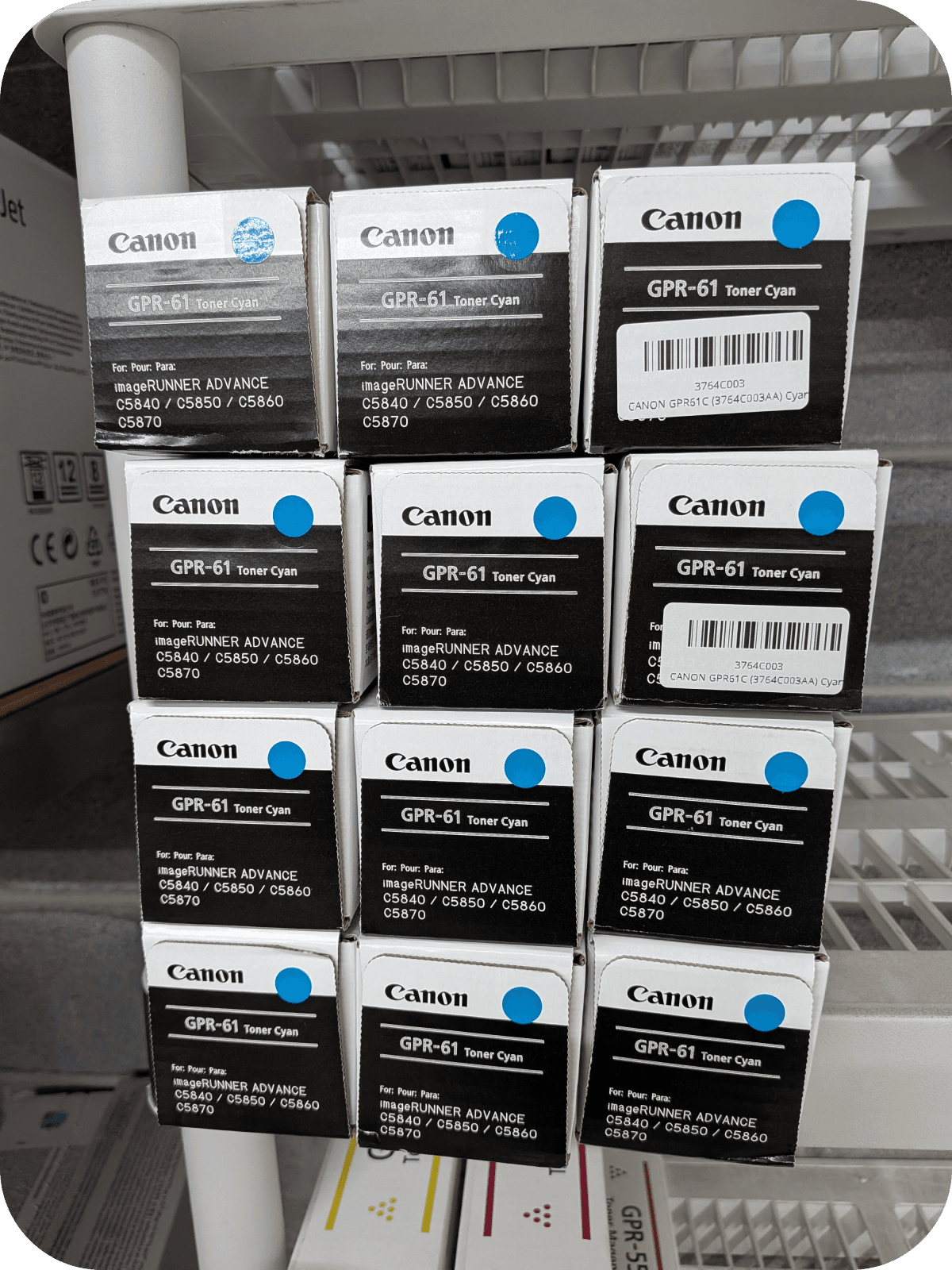
Businesses often upgrade printers before using all of their toner inventory. Instead of storing unused OEM toner, consider selling eligible cartridges to Toner Connect.

Benefits include:
- Recovering part of your original investment
- Reducing office clutter
- Supporting sustainability
- Keeping unused supplies out of storage
Helpful Statistics
Regular maintenance and responsible toner management help reduce waste and improve printer performance.
Recent statistics include:
- According to the Global E-waste Monitor 2024, the world generated approximately 62 million metric tons of electronic waste in 2022, with only 22.3% formally recycled.
- The U.S. Environmental Protection Agency encourages reusing and recycling office supplies whenever possible.
- Proper toner storage can help unopened OEM cartridges remain usable for several years under recommended conditions.
Frequently Asked Questions
Here are answers to common questions about resetting a Canon printer toner cartridge.
Why does my Canon printer still say “Low Toner” after installing a new cartridge?
The toner counter may need to be reset, the cartridge may not be installed correctly, or the cartridge may not be compatible with your printer.
Will resetting the toner cartridge refill it?
No.
A reset only clears the toner status or counter. It does not add toner to the cartridge.
Can I reset a compatible Canon toner cartridge?
Sometimes.
Some compatible cartridges support resets, while others depend on their chip design and compatibility with your printer model.
Can I sell unopened OEM Canon toner cartridges?
Yes.
If you have eligible unopened OEM Canon toner cartridges that you no longer need, Toner Connect may purchase them.
Conclusion
Resetting a Canon printer toner cartridge can often clear low-toner warnings and restore normal printing without replacing the cartridge.
Start by using your printer’s reset options, reinstalling the toner cartridge, checking compatibility, and updating the printer firmware. These steps resolve many common toner recognition issues. If you have unopened OEM Canon toner cartridges that are no longer needed, Toner Connect offers a convenient way to sell eligible supplies and recover value.